
ln is one of those commands everyone has run at some point by pasting a line from a tutorial, and few can fully explain. It has two modes with similar names and very different behaviour. Mix them up and one day you delete something you meant to keep, a deployment points at the wrong place or a backup takes three times the space.
Every example in this article was tested on Debian 13 with GNU coreutils 9.7, which is what you’ll find on nearly any Linux distribution. There’s a note at the end for macOS and BSD users, because some options differ there.
First, the inode
On a filesystem such as ext4, Btrfs or XFS, each file has an inode: a structure holding permissions, owner, timestamps, size and the location of the data blocks on disk. What the inode does not hold is the name. Names live in directories, which are just lists of “name → inode number” pairs.
Once that’s clear, the two kinds of link explain themselves:
- A hard link is another directory entry pointing at the same inode. Two names, one file.
- A symbolic link is a new file with its own inode, whose content is a path. The kernel follows that path when you open it.
Hard links: ln
$ echo hello > original.txt
$ ln original.txt hard.txt
$ ls -li original.txt hard.txt
33977972 -rw-r--r-- 2 root root 6 Nov  3 07:32 hard.txt
33977972 -rw-r--r-- 2 root root 6 Nov  3 07:32 original.txt
The first column is the inode number, and it’s the same for both. The 2 after the permissions is the link count: how many names point at that inode. There is no original and no copy; both names are equal.
Now delete the “original”:
$ rm original.txt
$ cat hard.txt
hello
$ stat -c '%i %h %n' hard.txt
33977972 1 hard.txt
The data is still there. rm doesn’t delete files, it deletes names: it decrements the count, and the kernel only frees the inode and its blocks once the count reaches zero and nobody has the file open.
Hard links have three limits:
- They can’t cross filesystems. Inode numbers only mean something inside one filesystem, so you can’t link to something on another partition or mount:
$ ln /proc/cpuinfo cpu ln: failed to create hard link 'cpu' => '/proc/cpuinfo': Invalid cross-device link - They can’t point at directories. They would create loops in the tree that break
find,duand backups. The only exceptions are.and.., which the filesystem manages itself.$ ln dir dirhard ln: dir: hard link not allowed for directory - There’s a per-inode ceiling. On ext4 it’s 65,000 links. You’ll rarely hit it, but some backup tools that link aggressively have.
Symbolic links: ln -s
$ echo world > target.txt
$ ln -s target.txt symlink.txt
$ ls -li target.txt symlink.txt
33977974 -rw-r--r-- 1 root root  6 Nov  3 07:32 target.txt
33977999 lrwxrwxrwx 1 root root 10 Nov  3 07:32 symlink.txt -> target.txt
Different inodes, an l at the start of the permissions and an arrow showing where it points. The size, 10 bytes, is exactly the length of the string target.txt: that’s all the link contains.
Delete the target and the link is left dangling:
$ rm target.txt
$ cat symlink.txt
cat: symlink.txt: No such file or directory
In exchange, a symlink can do everything a hard link can’t: cross filesystems, point at directories, point at something that doesn’t exist yet and change target without touching the target. It’s also visible at a glance with ls -l, which a hard link never is: a hard link is indistinguishable from the “real” file.
The options you’ll actually use
The syntax is ln [options] TARGET LINK_NAME, in the same order as cp: first what already exists, then the new name.
| Option | What it does |
|---|---|
-s |
Create a symbolic link instead of a hard link |
-f |
Remove the destination name if it already exists |
-n |
If the destination is a symlink to a directory, treat it as a normal file (key with -sf) |
-r |
Work out the relative path for you (GNU only) |
-v |
Print what was linked |
-i |
Ask before overwriting |
-b |
Back up the destination being replaced |
The ln -sf trap with directories
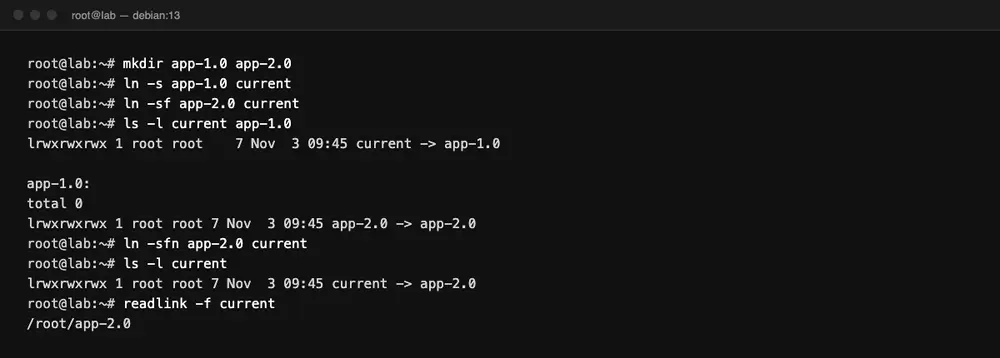
This is the classic mistake when deploying versions behind a current link. You have current -> app-1.0 and want it to point at app-2.0:
$ ln -s app-1.0 current
$ ln -sf app-2.0 current
$ ls -l current app-1.0
lrwxrwxrwx 1 root root 7 Nov  3 07:32 current -> app-1.0

app-1.0:
lrwxrwxrwx 1 root root 7 Nov  3 07:32 app-2.0 -> app-2.0
current still points at the old version. Because current is a link to a directory, ln followed it and created the new link inside app-1.0. On top of that the new link is broken, since app-2.0 is a relative path that leads nowhere from inside app-1.0. The fix is to add -n:
$ ln -sfn app-2.0 current
$ ls -l current
lrwxrwxrwx 1 root root 7 Nov  3 07:32 current -> app-2.0
One detail: ln -sfn removes the link and creates another, so for an instant current doesn’t exist. If a service reads it constantly and you need a truly atomic switch, create the link under another name and rename it over the old one with mv -T current.new current. rename() is atomic.
Absolute or relative paths
ln -s stores the text you give it verbatim, without checking anything. A relative path is resolved from the directory the link lives in, not from where you were when you created it. That’s why so many links are born broken.
- Absolute (
ln -s /etc/nginx/nginx.conf ~/nginx.conf): works wherever you move the link, but breaks if the root changes, for instance inside a chroot, a container or when the disk is mounted on another machine. - Relative: survives moving the link and its target together, inside a tarball or a repository, for example.
GNU ln works out the relative path with -r, so you don’t have to count ../:
$ ln -sr a/b/f a/link
$ ls -l a/link
lrwxrwxrwx 1 root root 3 Nov  3 07:32 a/link -> b/f
Inspecting links
ls -li file             # inode and link count
stat file               # the whole inode, including "Links:"
readlink link           # the text stored in the link
readlink -f link        # the final path, following every link
find . -samefile g      # every name for the same inode
find /etc -xtype l      # broken symlinks (GNU find)
With find -samefile (or -inum if you already have the number) add -xdev and search only the filesystem the file lives on: inode numbers repeat across partitions and you’d get false matches.
In Bash scripts, [ -L path ] checks whether something is a symlink and [ -e path ] whether its target exists. A broken link passes the first and fails the second, which is exactly how you spot one:
[ -L symlink.txt ] && [ ! -e symlink.txt ] && echo "broken link"Backups with hard links
This is where hard links shine. rsync --link-dest makes full daily copies in which unchanged files are hard links to the previous copy:
rsync -a --link-dest=/backups/yesterday/ /home/user/ /backups/today/Every snapshot looks complete, but a file that hasn’t changed in a month takes up space only once. It’s what rsnapshot does under the hood, for example.
There’s a risk worth keeping in mind: all the snapshots share that inode. If you open a file in /backups/yesterday/ and modify it in place, it changes in every snapshot sharing it, with no warning. Your /home doesn’t notice, because rsync copied the data from there, but your history has been altered. Deleting a file from one snapshot is safe (it only removes a name), and most editors save by writing a new file and renaming it, which breaks the link. Even so, the sensible thing is to mount or protect those snapshots read-only.
Three more traps
cp and links. Without -R, cp follows the link and copies the target’s content. With -R it copies links as links. To copy the link itself without -R, use -P:
cp link dest/       # copies the file it points to
cp -P link dest/    # copies the link
cp -R dir dest/     # links inside dir are copied as links
tar stores symlinks as links. With -h it follows them and stores the real content. Decide which you want beforehand, especially if the archive is going to another machine where those paths don’t exist.
Permissions and owner. A symlink’s permissions always show as lrwxrwxrwx and mean nothing: the target’s permissions are what count, and chmod on the link changes the target. The owner, however, does matter. chown -h changes the link’s owner without touching the target. And in world-writable directories with the sticky bit, such as /tmp, the kernel only follows a link if the follower owns it or the directory owner also owns the link (that’s what fs.protected_symlinks controls, set to 1 by systemd on almost every distribution). That rule shuts down a whole family of /tmp link attacks.
Which one should I use?
A symbolic link, nearly always: for directories, across partitions, for swappable versions (current -> app-2.1), for dotfiles and configs, and for anything someone needs to understand by looking at ls -l.
A hard link when you want the data to survive deleting any of its names, or to deduplicate within one filesystem, as rsync --link-dest backups do.
If you use macOS or a BSD
ln is there too, but it isn’t GNU’s. The macOS one has no -r (it answers illegal option -- r) and find has no -xtype. -n and -f work the same. stat changes as well: on BSD it’s stat -f '%i %l %N' rather than stat -c '%i %h %n'. If you want Linux behaviour on a Mac, Homebrew installs coreutils and findutils with g-prefixed commands (gln, gfind).
How we tested this
The Linux examples were run as root in a Docker container from the debian:13 image (Debian 13.7) with GNU coreutils 9.7, in an empty working directory. No extra privileges are needed: even the ln /proc/cpuinfo cpu error looks the same inside the container, because /proc is a separate filesystem. The screenshot of the ln -sf trap comes from a second run on 3 November in a fresh container; the ls -l timestamps differ, the behaviour doesn’t.
To reproduce it:
docker run --rm -it --name lab-ln debian:13 bash
cd /root && mkdir app-1.0 app-2.0
ln -s app-1.0 current && ln -sf app-2.0 current && ls -l current app-1.0
Try ln -sf and rm in a container or a scratch directory, not on the symlinks of a live deployment.
Sources: the GNU coreutils manual for ln and cp; the link(2) and symlink(7) man pages at man7.org; the kernel documentation on protected_symlinks; and the --link-dest option in the rsync manual.